

Finance and Governance.
Setting Up Ledger with NEAR
- Download and install Ledger Live
- Connect your Ledger via USB or Bluetooth
- Open the Ledger Live application and ensure your device firmware is up to date
- In Ledger Live, install the NEAR app from the App Catalog
- Open the NEAR app on your Ledger device (the screen should display Application is ready)
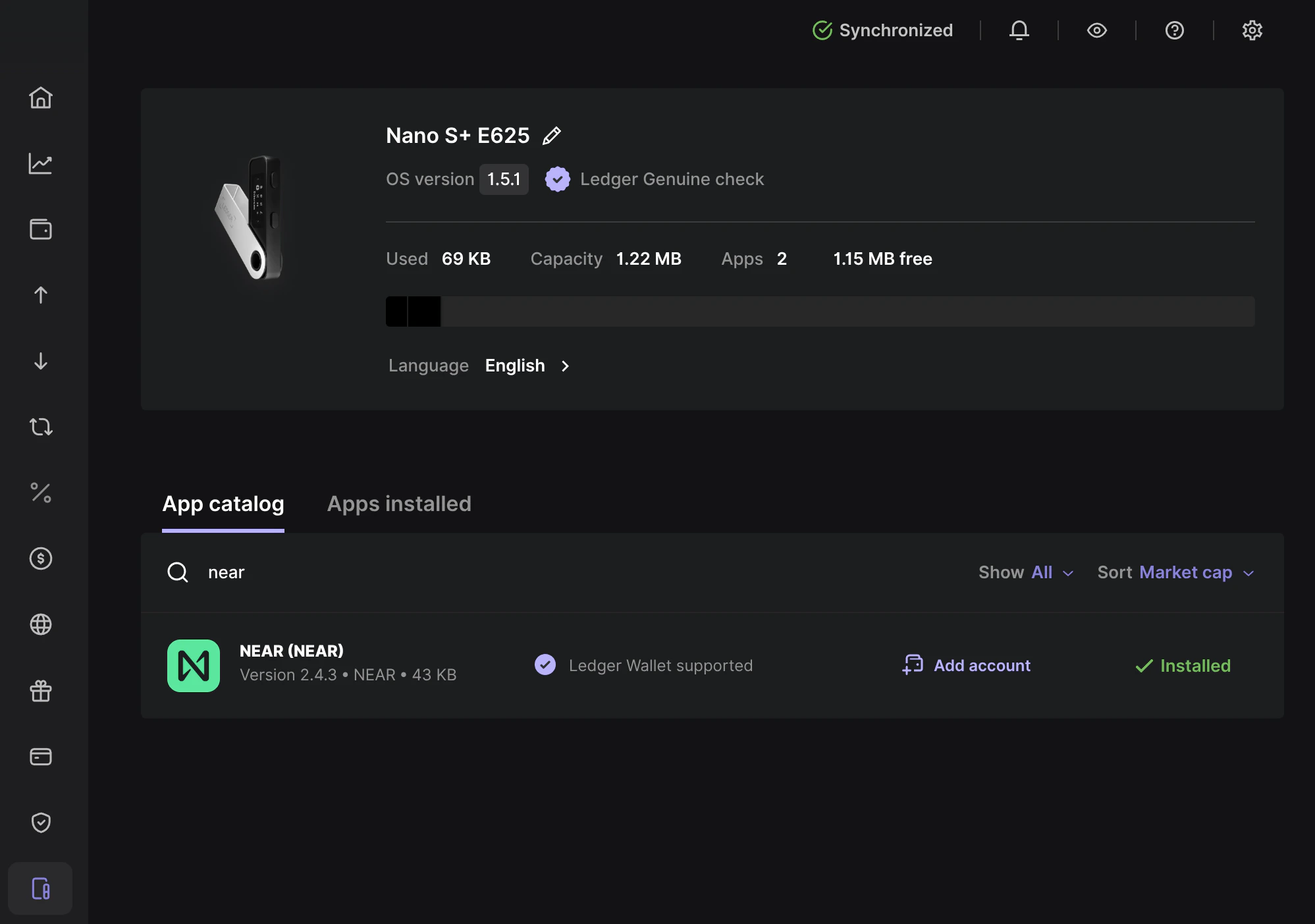
NEAR app (v2.4.3) installed in Ledger Live
Your Ledger is now set up, so you can readily use it to join a treasury in Trezu or create a new one.1. Log in to Trezu
Go to trezu.app and click Login- Select the Ledger option
- Choose between USB or Bluetooth connection depending on your device
- Your device will prompt you to confirm the connection — approve it on the device
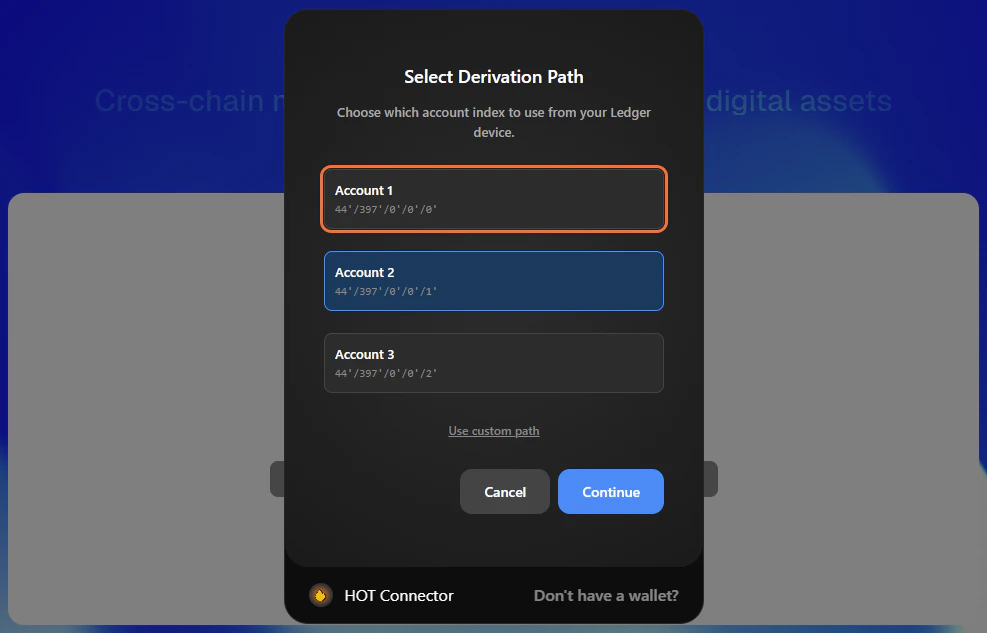
2. Select a Derivation Path
At this point, you will be prompted to select aDerivation Path, which determines which private key you want the Ledger to use when signing transactions in Trezu.
3. Select an Account
Now that you have selected whichprivate key you want to use, it is time to manually enter the account you want to log in with:
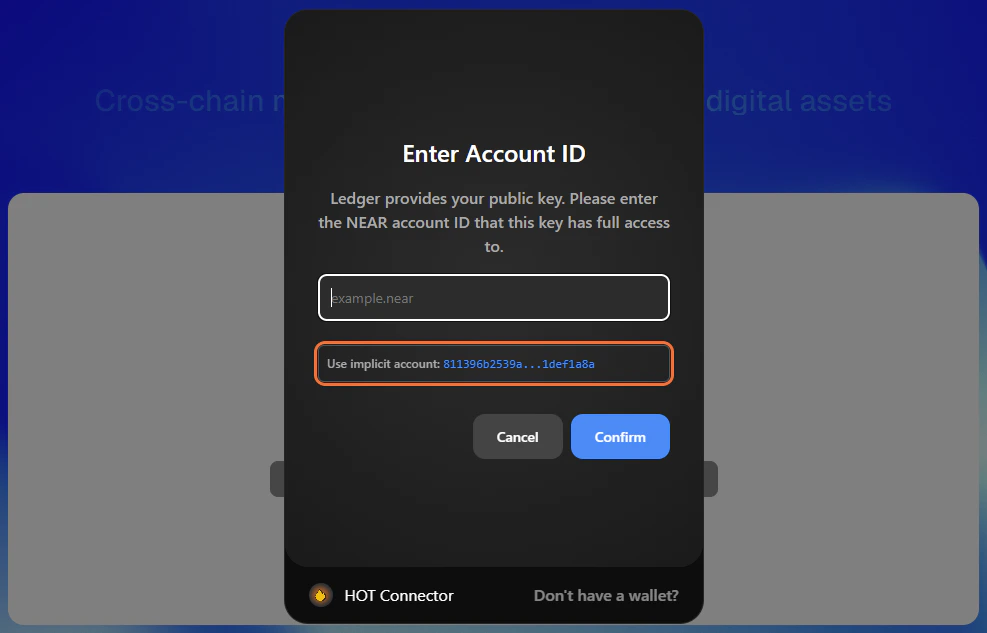
implicit account derived directly from the selected derivation path, or input any other accountId of your choice.
After confirming, you will see one of the following outcomes:
- Logged in successfully — the account exists and matches the selected Ledger
private key - Create account option — the account does not exist yet, so you can create it immediately
- Error message — the account exists, but it is linked to a different Ledger
private key
AdvancedIn NEAR, it is possible to add your Ledger
public key to accounts that already exist; however, to do this you will need to use an external tool, such as the NEAR CLI.