> ## Documentation Index
> Fetch the complete documentation index at: https://docs.trezu.org/llms.txt
> Use this file to discover all available pages before exploring further.
# Generating Receipts
> Create a printable receipt for an executed request
Once a request has been executed, Trezu can generate a receipt for it — a clean, printable confirmation of the transaction that you can save as a PDF or share as a link. Use receipts to share proof of payment with a vendor, attach to invoices, or keep for your accounting and audit records.
Receipts are available for the following executed request types:
* [Single payments](/payments/single-payment)
* [Bulk payments](/payments/bulk-payment)
* [Confidential payments](/guides/confidential-payments)
Receipts are available once a request has been **executed** — meaning the payment already happened on-chain. Requests that are still pending, rejected, or expired do not have a receipt.
***
## Generating a Receipt
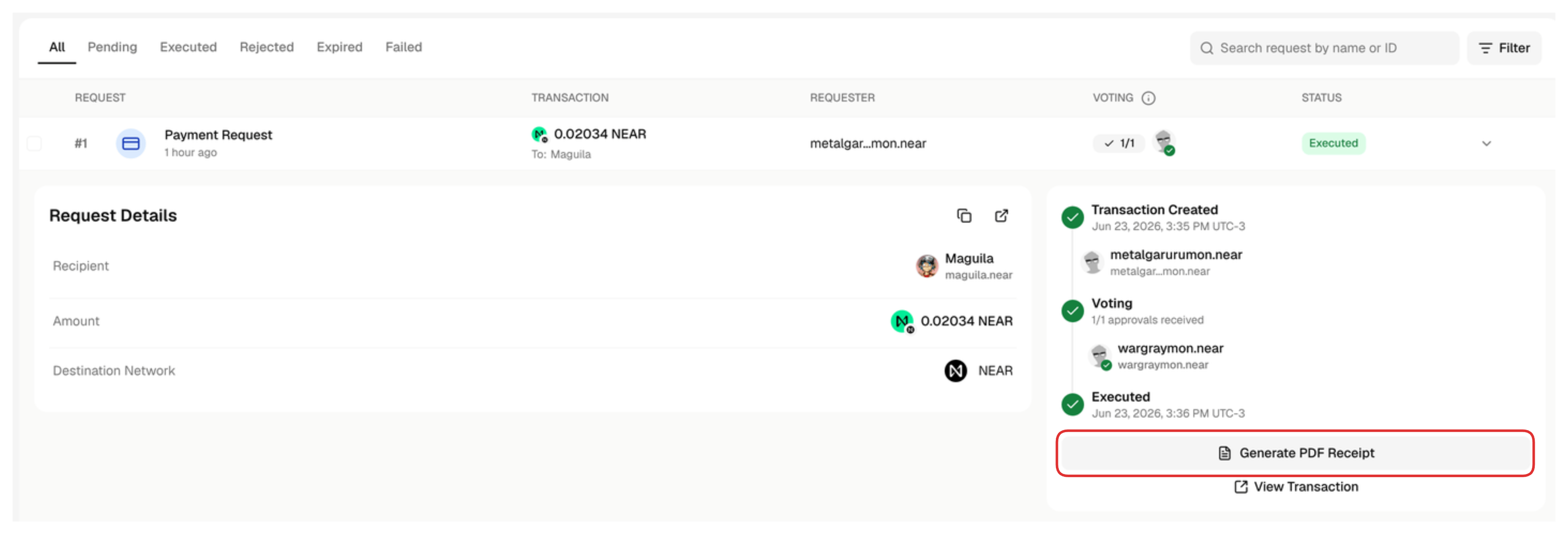
Navigate to the **`Requests`** section in the left sidebar and open the executed request you want a receipt for.
In the request details, click the **`Generate Receipt`** button. The receipt opens in a new tab.
 For bulk payments, the receipt includes one page per recipient, so you can print or save the whole batch at once.
Bulk payment receipts are not available in [confidential treasuries](/confidential-treasuries).
***
## Saving and Sharing
For bulk payments, the receipt includes one page per recipient, so you can print or save the whole batch at once.
Bulk payment receipts are not available in [confidential treasuries](/confidential-treasuries).
***
## Saving and Sharing
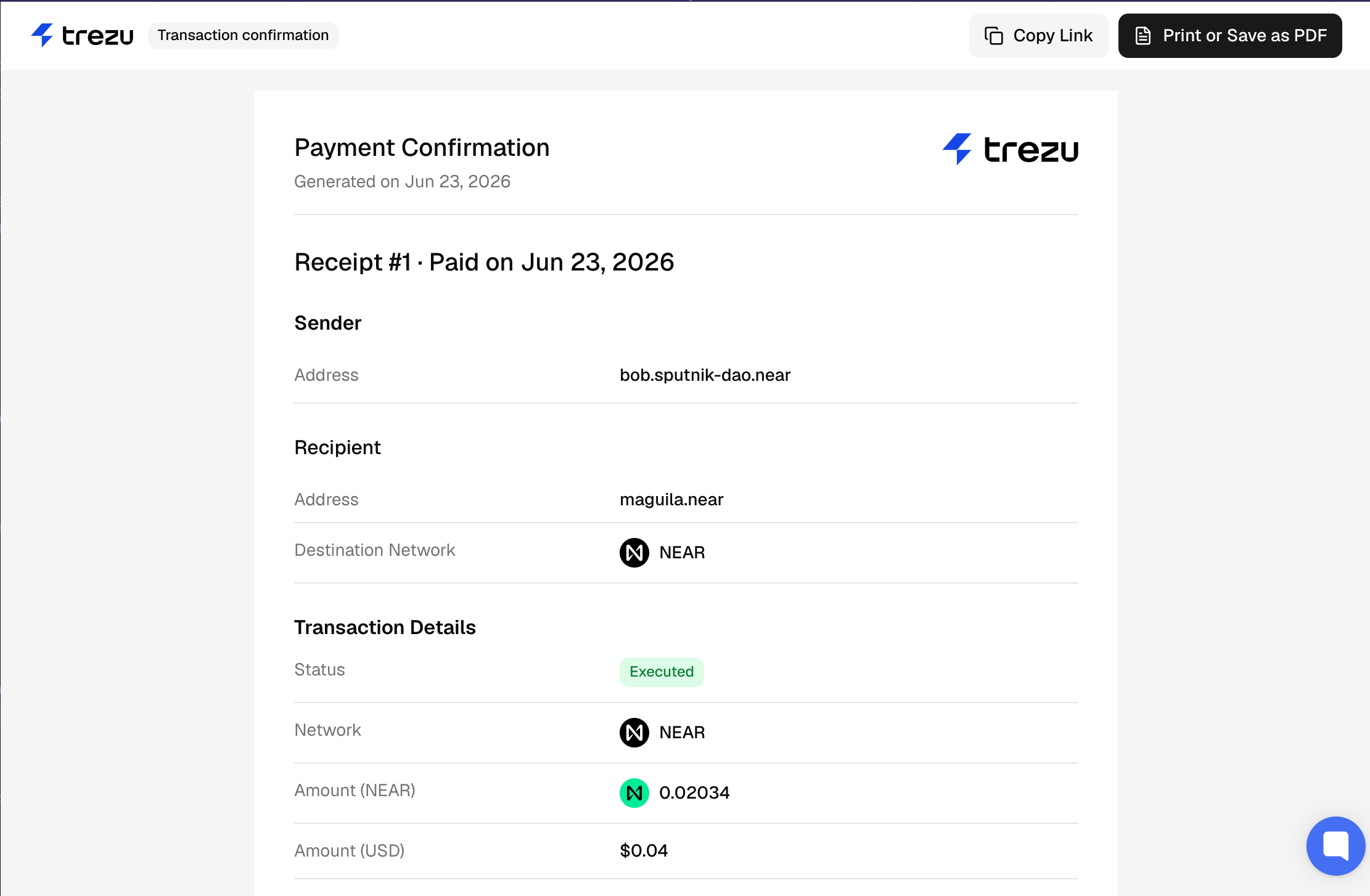 Each receipt shows the sender (treasury), the recipient, the token, the amount and its USD value, the network, the exchange rate, and the date and time the transaction was executed.
From the receipt page you can:
* **`Print or Save PDF`** — opens your browser's print dialog, where you can print the receipt or save it as a PDF.
* **`Copy Link`** — copies a shareable link to the receipt.
The **`Copy Link`** option is not available for [confidential treasuries](/confidential-treasuries), as receipt links are kept private.
***
## Frequently Asked Questions
The button only appears once the request has been executed. If it is still pending, was rejected, or expired, no receipt is available.
Each receipt shows the sender (treasury), the recipient, the token, the amount and its USD value, the network, the exchange rate, and the date and time the transaction was executed.
From the receipt page you can:
* **`Print or Save PDF`** — opens your browser's print dialog, where you can print the receipt or save it as a PDF.
* **`Copy Link`** — copies a shareable link to the receipt.
The **`Copy Link`** option is not available for [confidential treasuries](/confidential-treasuries), as receipt links are kept private.
***
## Frequently Asked Questions
The button only appears once the request has been executed. If it is still pending, was rejected, or expired, no receipt is available.