> ## Documentation Index
> Fetch the complete documentation index at: https://docs.trezu.org/llms.txt
> Use this file to discover all available pages before exploring further.
# Handling Payment Requests
> Manage payment requests in your treasury
Once a payment request is created - either for a [single payment](/payments/single-payment) or to pay [multiple recipients at once](/payments/bulk-payment) - it gets listed as a `Pending` request in the `Requests` section.
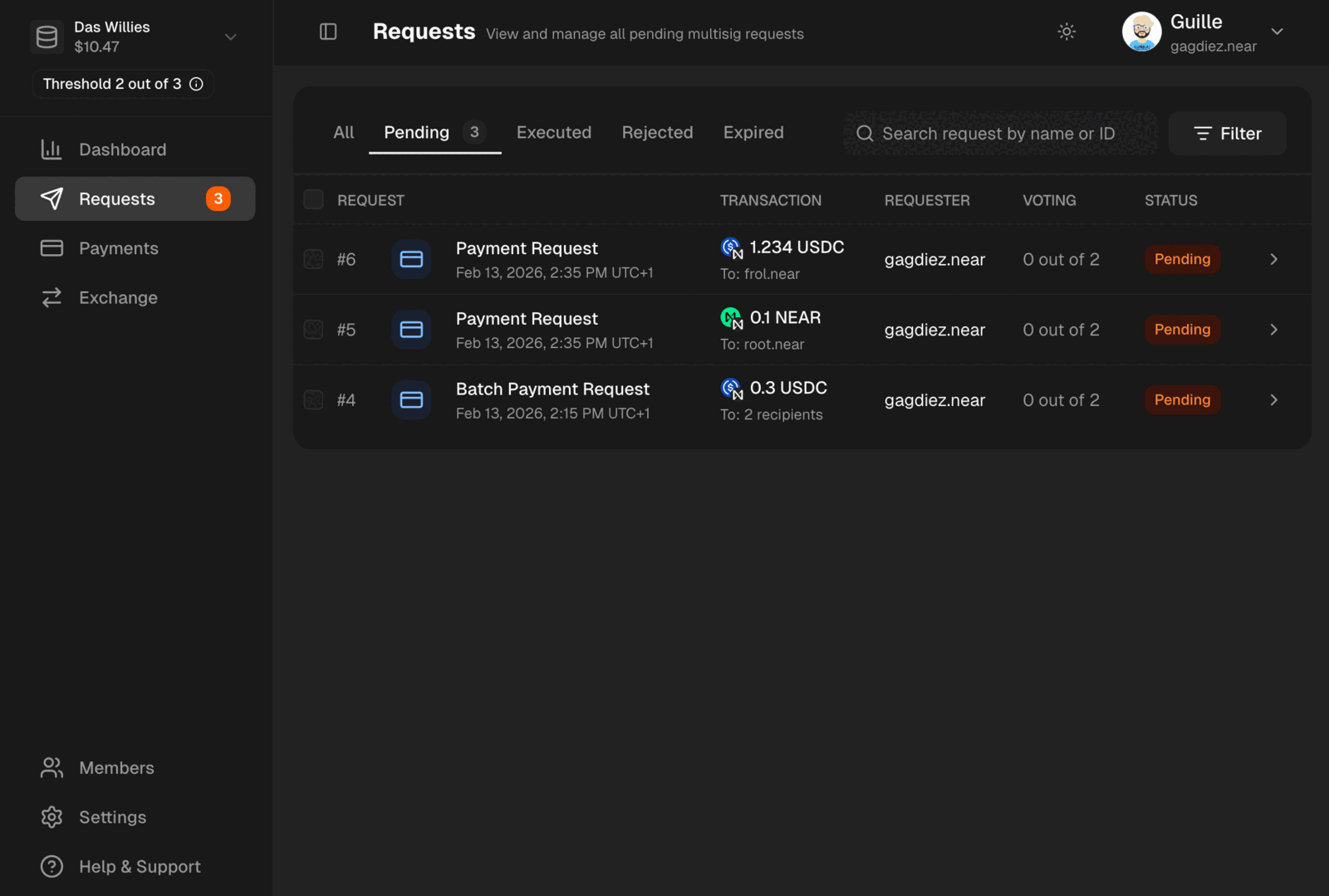 Navigate to the `Requests` section in the left sidebar to see all pending payment requests. You can filter and sort requests to find the one you want to review and vote on.
Only team members with the **[Finance](/governance/members-and-roles#finance) role** can review request details and cast a vote to either **approve** or **reject**.
***
## Voting on a Request
Click on a request to review its details, including the recipient, the amount, the token, and any comments added by the requester. After reviewing the request, you can cast your vote to either approve or reject it.
Navigate to the `Requests` section in the left sidebar to see all pending payment requests. You can filter and sort requests to find the one you want to review and vote on.
Only team members with the **[Finance](/governance/members-and-roles#finance) role** can review request details and cast a vote to either **approve** or **reject**.
***
## Voting on a Request
Click on a request to review its details, including the recipient, the amount, the token, and any comments added by the requester. After reviewing the request, you can cast your vote to either approve or reject it.
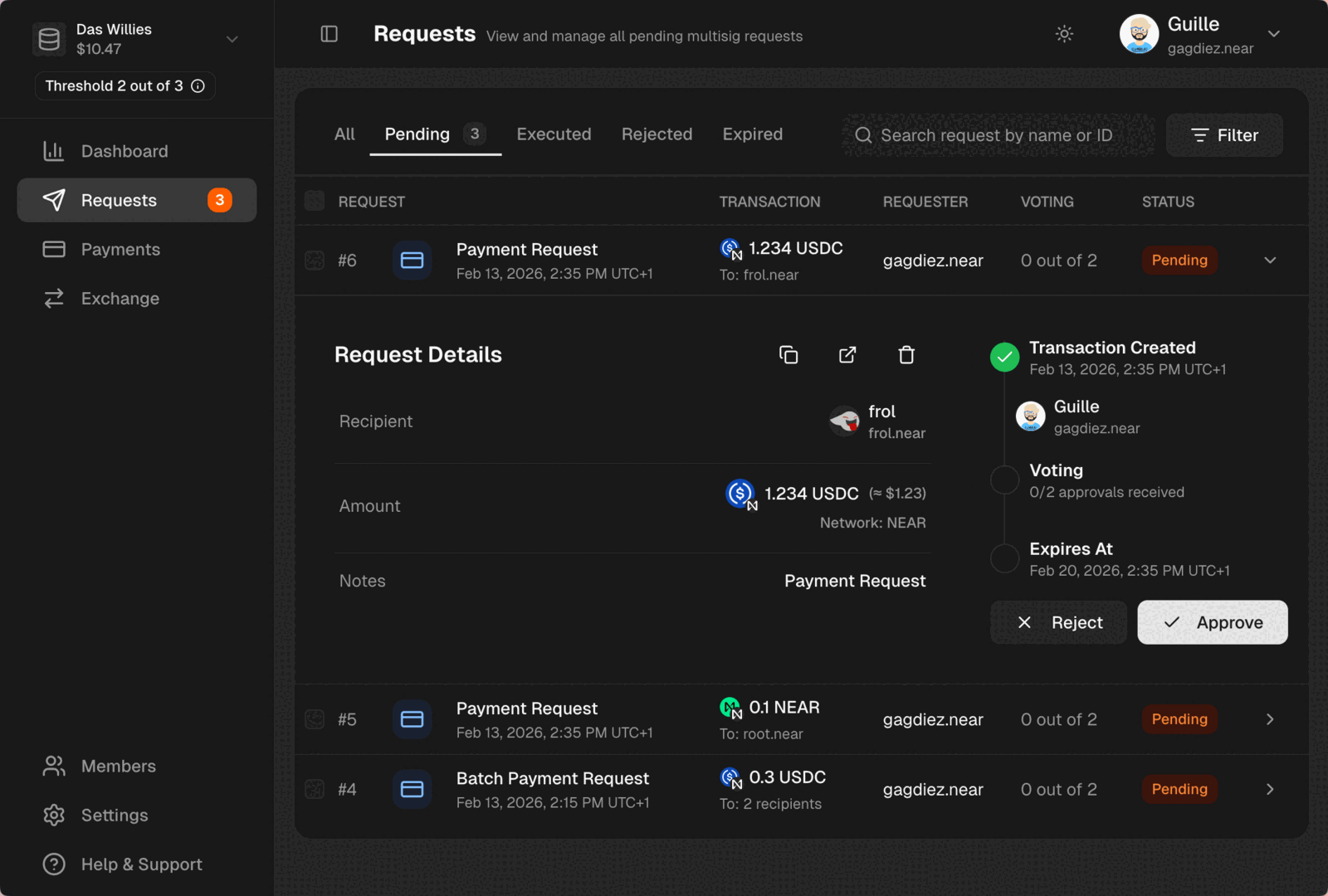 Only team members with the **[Finance](/governance/members-and-roles#finance) role** can review request details and cast a vote to either **approve** or **reject**.
If the treasury does not have enough funds to cover the payment request, you will need to top up the treasury with the required tokens before the request can be approved.
***
## Receipts
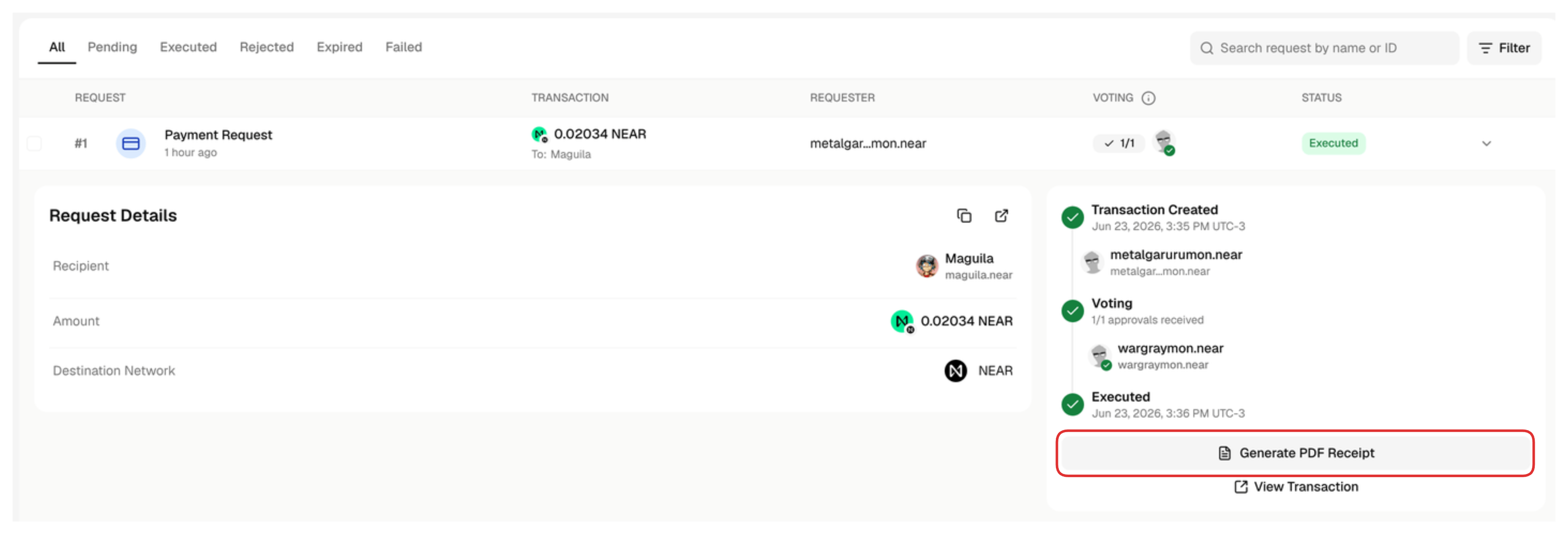
Once a payment request is approved and executed, you can generate a PDF receipt to share with the recipient as a proof of payment.
Simply click on the payment you want to generate a receipt for, and then click on the **`Generate PDF Receipt`** button.
Only team members with the **[Finance](/governance/members-and-roles#finance) role** can review request details and cast a vote to either **approve** or **reject**.
If the treasury does not have enough funds to cover the payment request, you will need to top up the treasury with the required tokens before the request can be approved.
***
## Receipts
Once a payment request is approved and executed, you can generate a PDF receipt to share with the recipient as a proof of payment.
Simply click on the payment you want to generate a receipt for, and then click on the **`Generate PDF Receipt`** button.
 For **non-confidential** treasuries you can also share a receipt link with the recipient, so they can view the receipt online.
Confidential treasuries do not allow sharing receipt links, but you can still generate a PDF receipt and share it with the recipient.
***
## Filtering Payment Requests
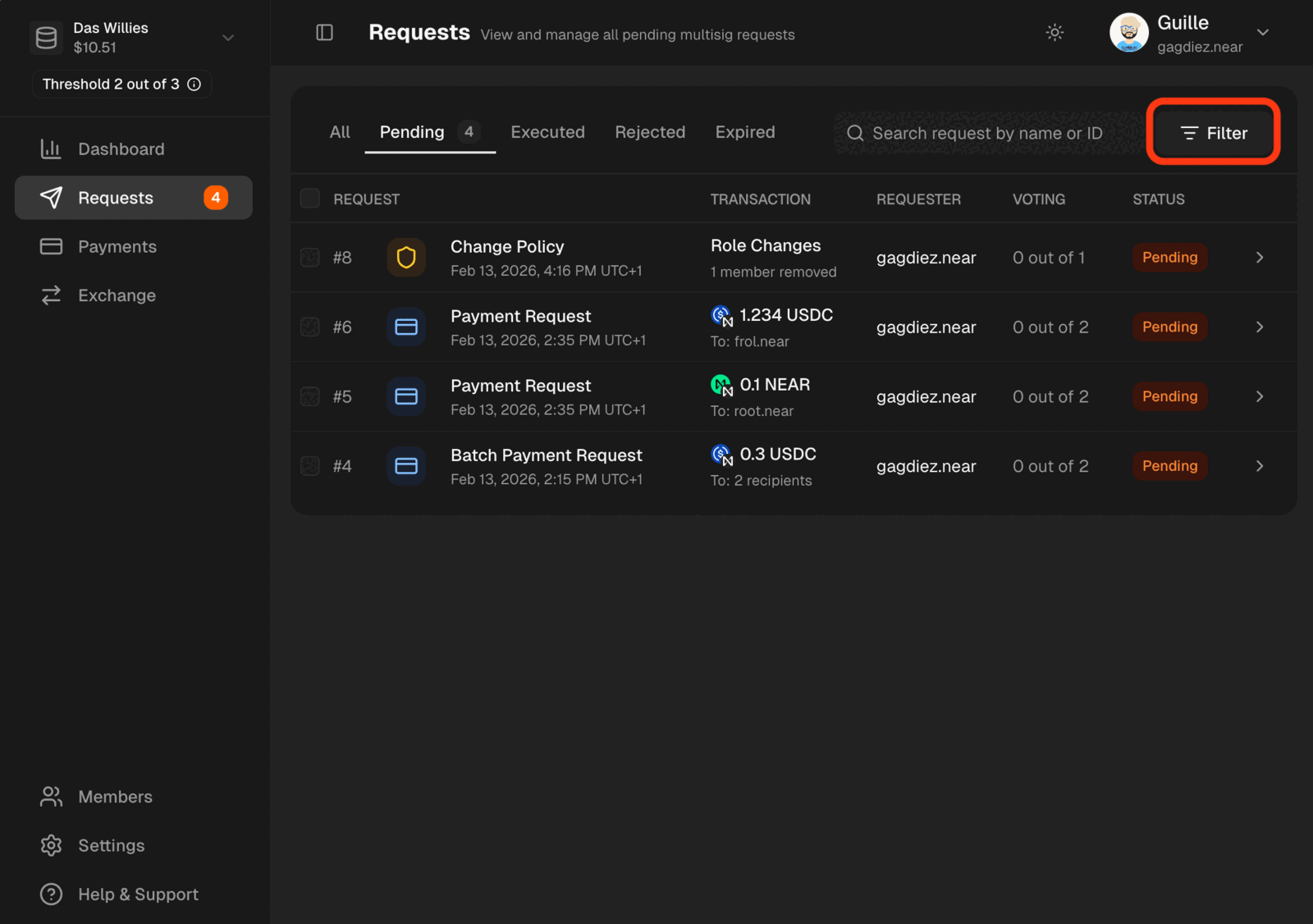
You can filter payment requests by the following fields: `Request Type`, `Created Date`, `Recipient`, `Token`, `Requester`, `Approver`, `My Vote status`.
To filter payment requests, click on the **`Filter`** icon:
For **non-confidential** treasuries you can also share a receipt link with the recipient, so they can view the receipt online.
Confidential treasuries do not allow sharing receipt links, but you can still generate a PDF receipt and share it with the recipient.
***
## Filtering Payment Requests
You can filter payment requests by the following fields: `Request Type`, `Created Date`, `Recipient`, `Token`, `Requester`, `Approver`, `My Vote status`.
To filter payment requests, click on the **`Filter`** icon:
 Then simply add as many filters as needed:
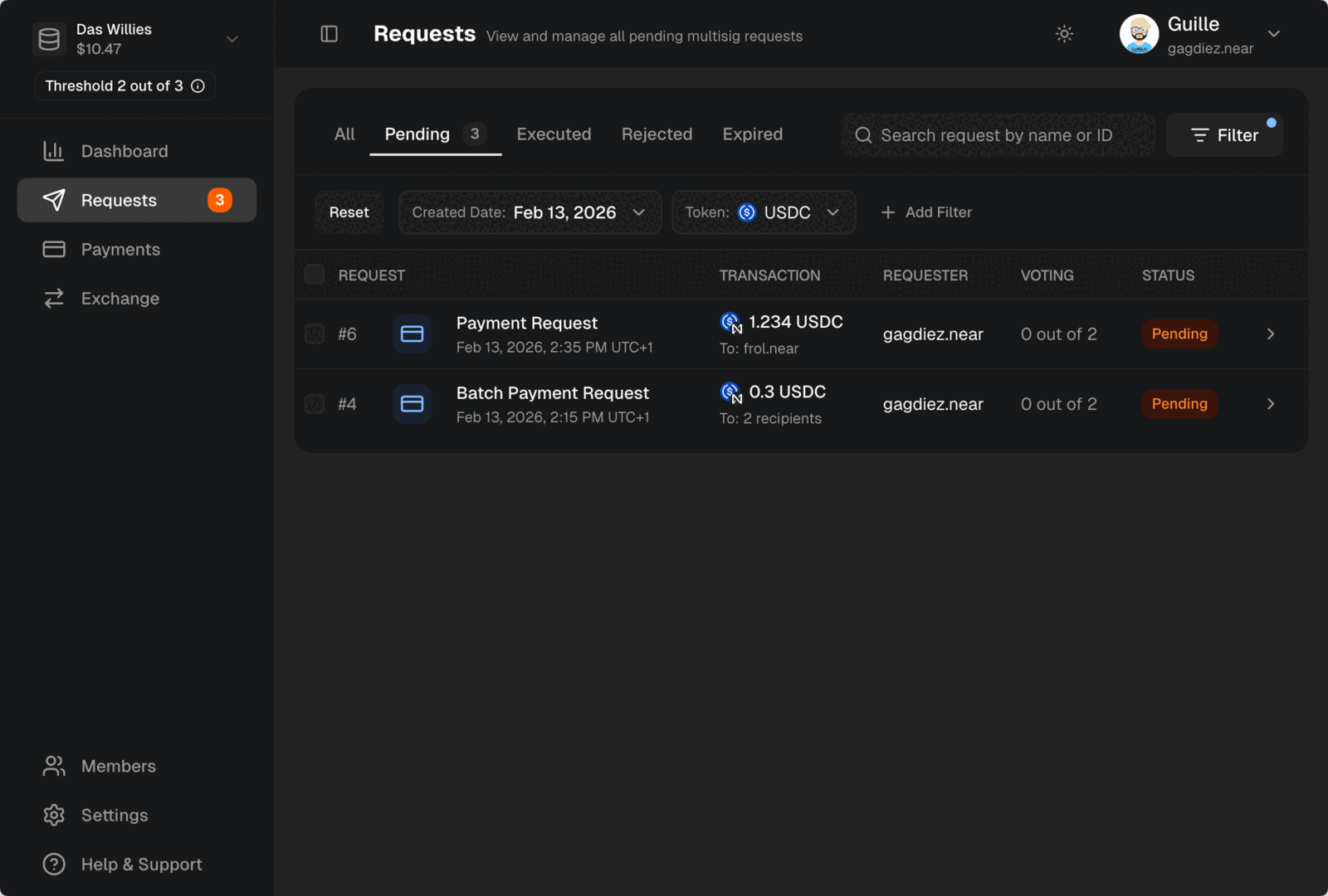 To see only payment requests, filter by `Request Type` -> `Payments`.