> ## Documentation Index
> Fetch the complete documentation index at: https://docs.trezu.org/llms.txt
> Use this file to discover all available pages before exploring further.
# Receiving a Payment on near.com
> Withdraw payments received from a confidential treasury
Just like public treasuries, [confidential treasuries](/confidential-treasuries) can [send payments](/payments/single-payment) in all [assets and chains](/what-is#chains--assets) supported by Trezu.
Confidential treasuries can send payments to both [near.com](https://near.com/) accounts and public wallet addresses, but in both cases the payment details and the sender's information are hidden from the public.
In this guide we will explain how to access and withdraw a confidential payment received on a [near.com](https://near.com/) account, and how to transfer it to an external wallet.
***
## Accessing and Withdrawing a Confidential Payment
Navigate to [near.com](https://near.com/) and log in with the **wallet where you received the payment** (`near.com` supports a wide range of wallets, from multiple ecosystems).
Once logged in, use the top left switch to enable confidential mode. You should see your private balance update to reflect the funds received from the confidential treasury.
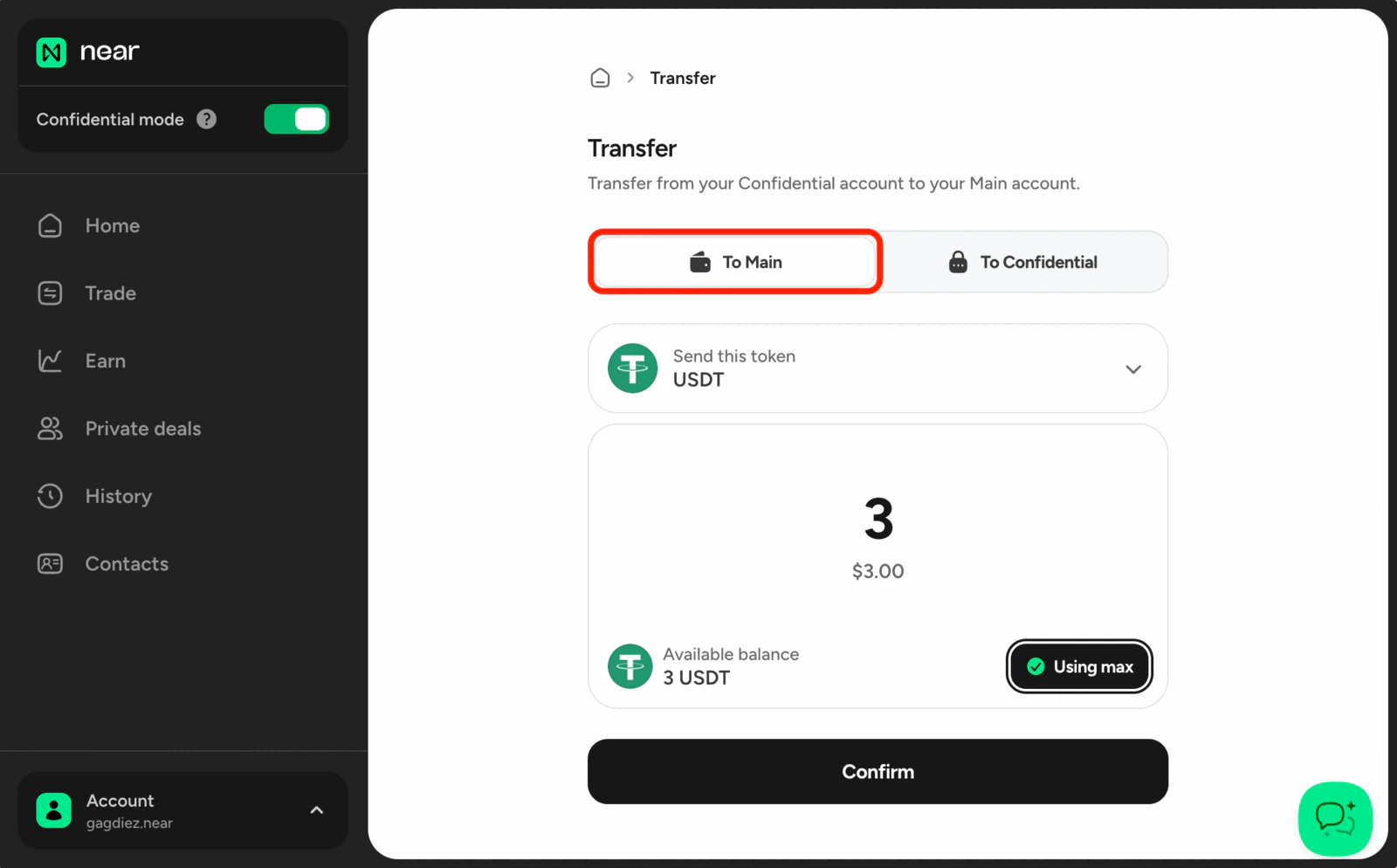
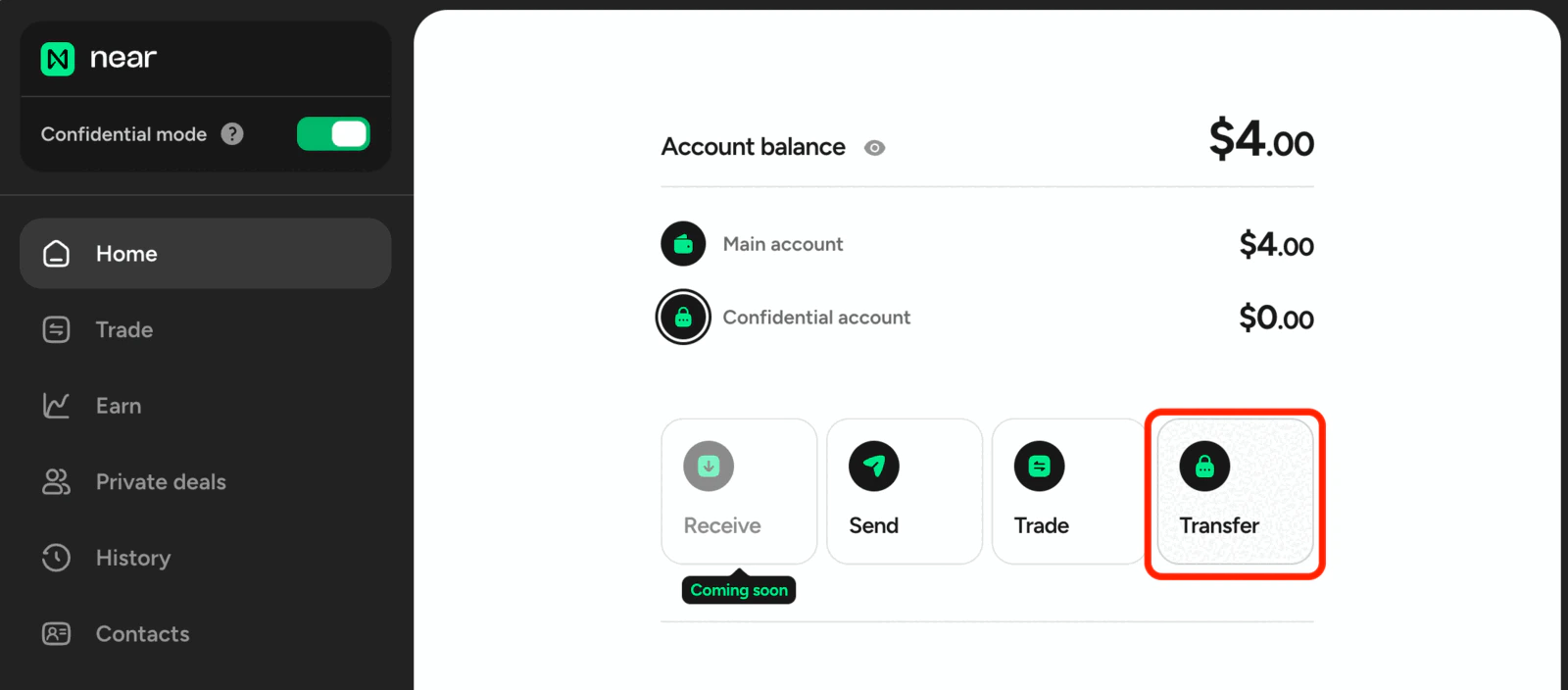 Click on `Transfer` and select the `To Main` option, this will allow you to transfer the funds to your main near.com balance, making them available for withdrawal to an external wallet.
 Once the transfer is complete, go back to the home screen, disable confidential mode using the top left switch, and click on `Send` to transfer the funds to your external wallet.
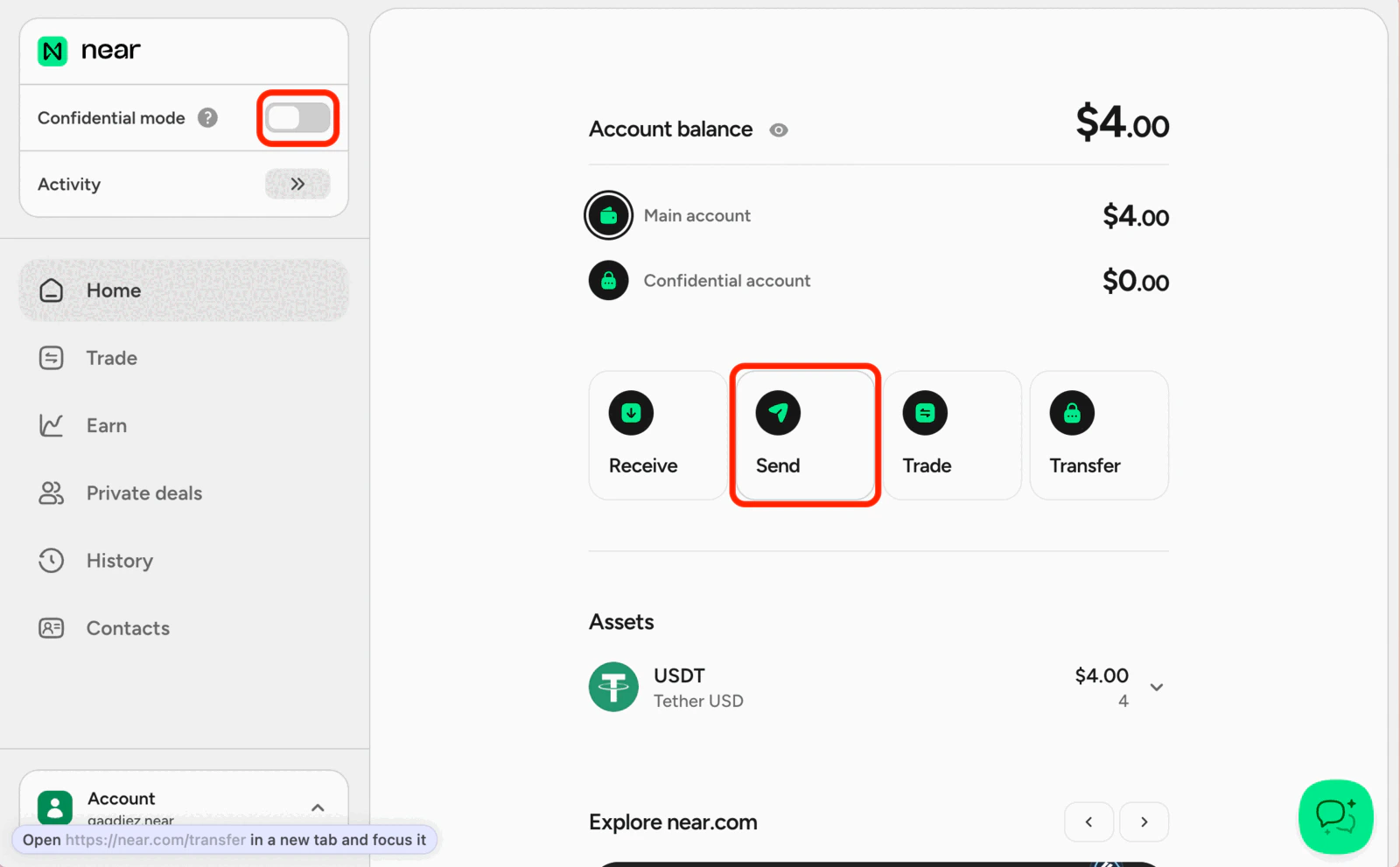 Make sure to disable confidential mode before sending the funds to your external wallet.
Select the token you want to send, the destination network, and the recipient address, then confirm the transfer.
Make sure to disable confidential mode before sending the funds to your external wallet.
Select the token you want to send, the destination network, and the recipient address, then confirm the transfer.
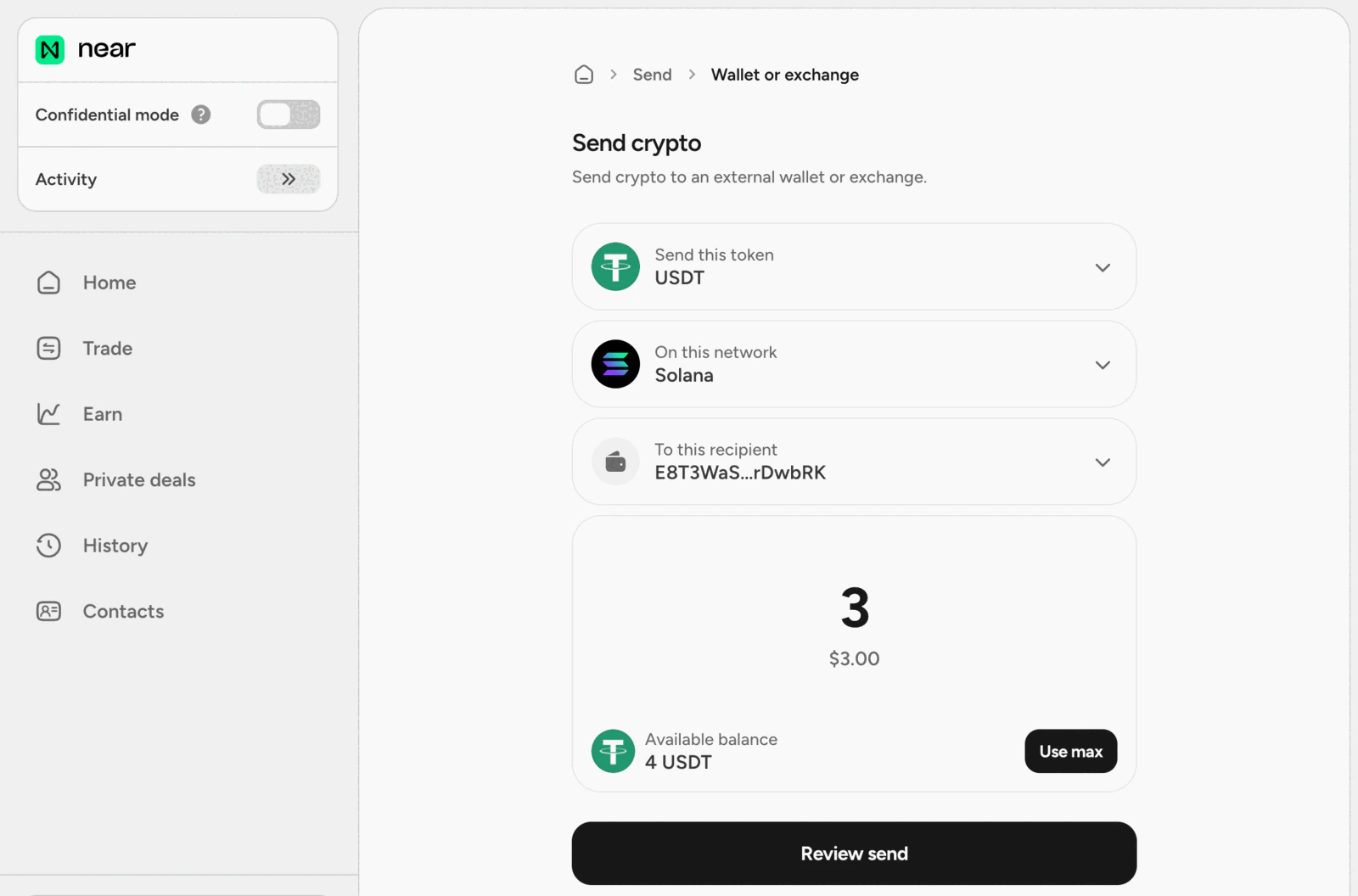 You can swap the funds to any other asset supported by `near.com` before withdrawing them. The same asset can also be sent across multiple networks, so you can choose the option that best fits your needs.
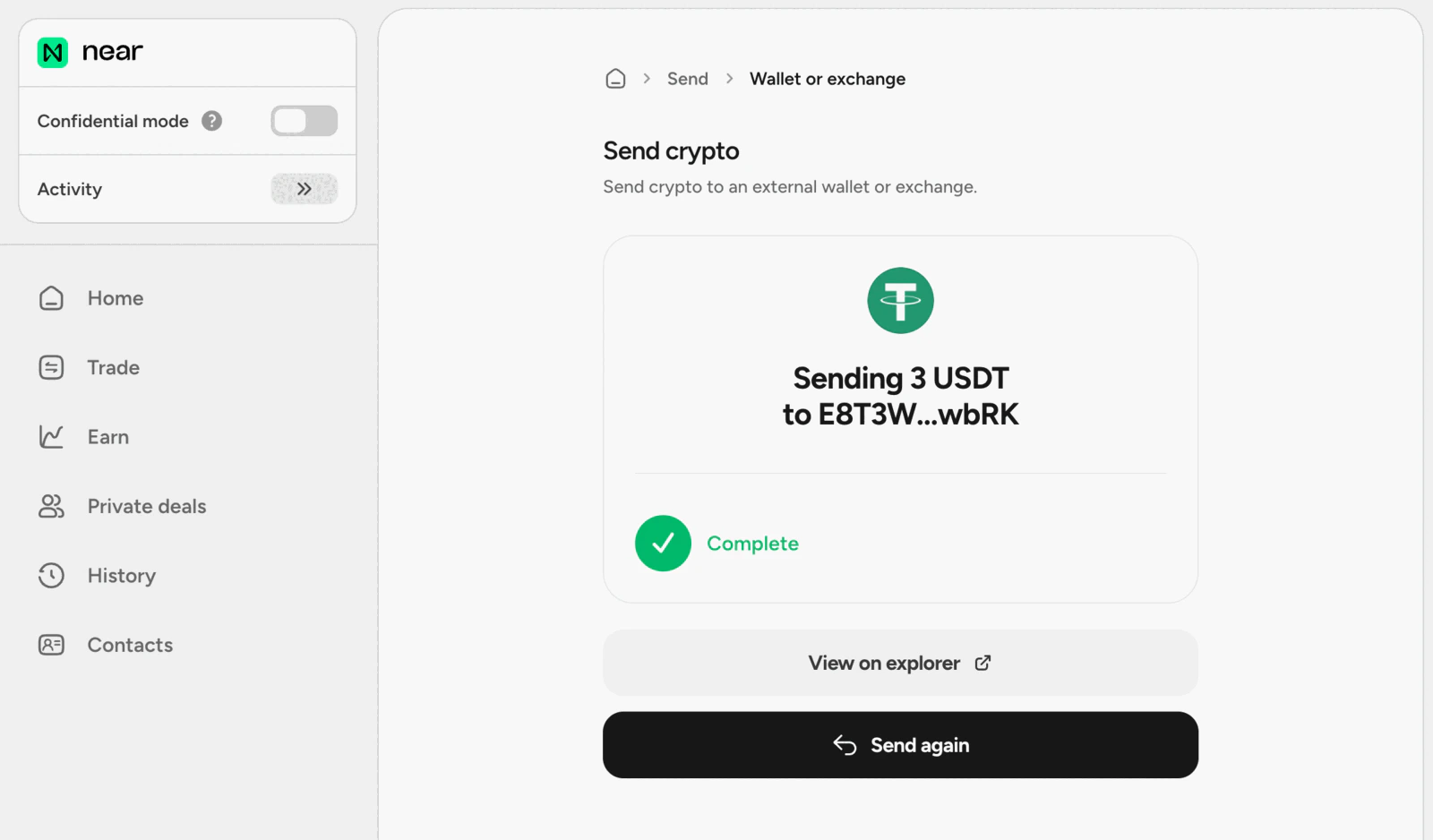
Once the transfer completes, you will see the funds available in your selected external wallet.
You can swap the funds to any other asset supported by `near.com` before withdrawing them. The same asset can also be sent across multiple networks, so you can choose the option that best fits your needs.
Once the transfer completes, you will see the funds available in your selected external wallet.